Where did I lose hit points, and what did I see at that moment?
Stop the replay at the moment of a hit, look at the tanks in 3D and see why the damage went through. The “Statistics” tab helps you work out which episodes are worth rewatching and how your results change from battle to battle.
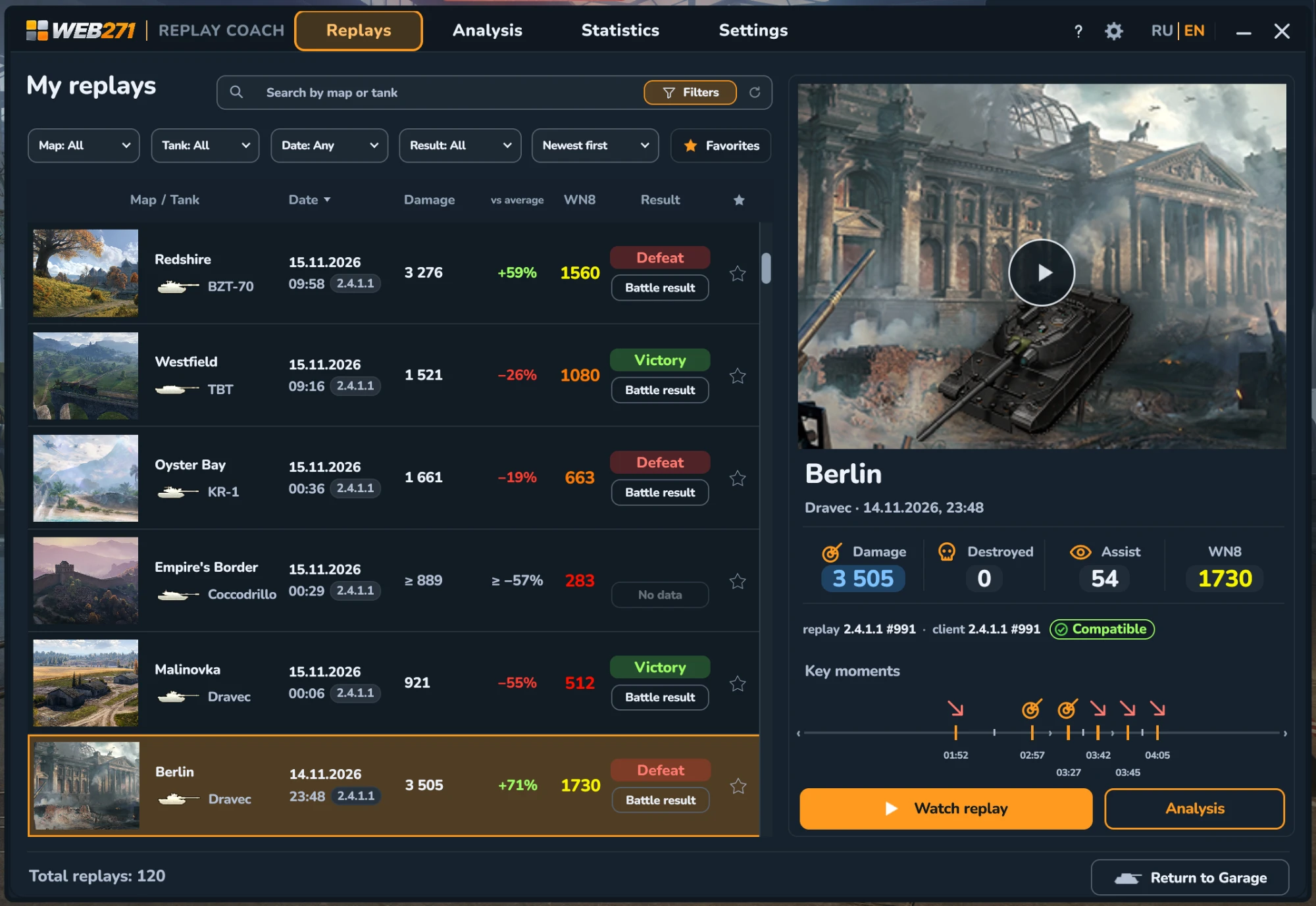
Remember the map or the tank but forgot when you played? In the “My replays” window you can filter battles by map, vehicle, date and result. The star at the end of a row saves the battle to favourites, so it is easier to return to.
The selected row is highlighted in orange. The map, battle figures and the strip of key moments change on the right.
What one row tells you
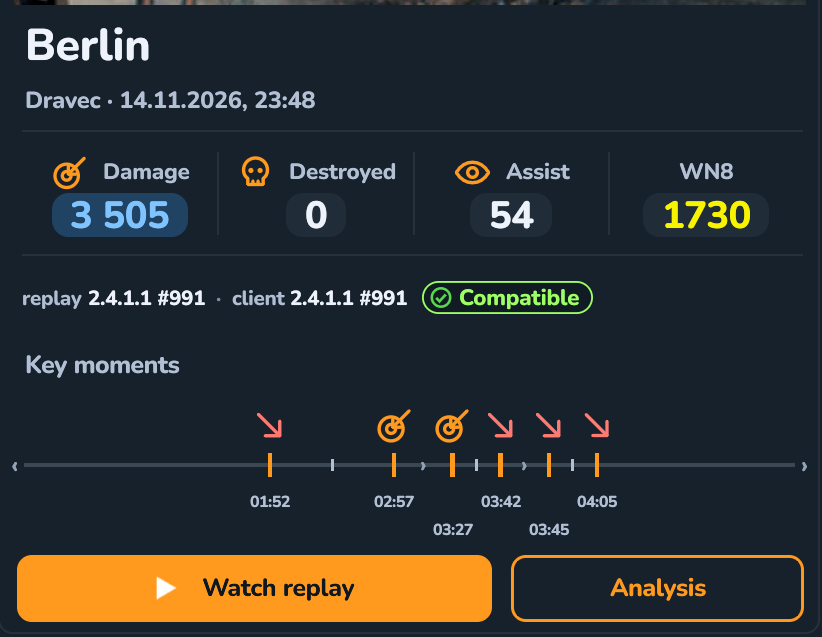
Berlin · Dravec
The battle started on 14 November at 23:48. Out of 120 records, this replay is the one selected.
3,505 damage · defeat
The player took 3,505 hit points off the enemies. The team lost. These are two different characteristics of one battle.
WN8 1 730
WN8 is a rating of your personal result that takes into account which vehicle you played. The number alone does not tell you where the good shot was. For that, open the analysis.
“Watch replay” or “Analysis”
The first button starts the battle in the game engine. The second opens a map with events, where you can first choose the moment you are interested in.
The “Statistics” tab
In the Garage, open the WEB271 menu, choose “Replays”, then “Statistics” in the top row of the window, next to “Analysis”. Here you can review one battle, compare results over several days or see which shots are worth rewatching across the whole archive. All three examples below come from the same replay archive.
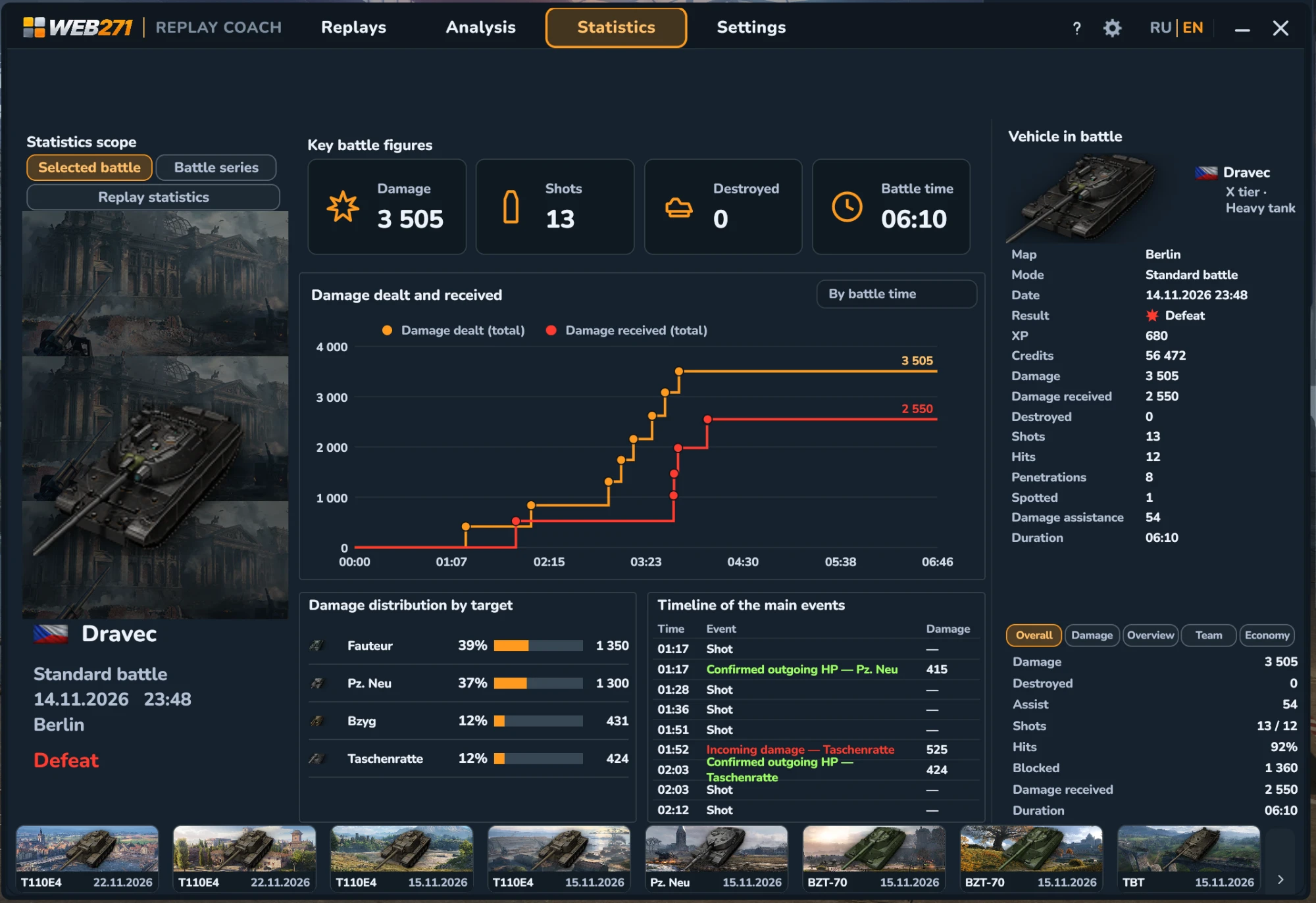
Selected battle. Who took the damage?
Dravec on Berlin, 14 November. In 6 minutes 10 seconds the player fired 13 shots, hit 12 times, dealt 3,505 damage and took 2,550.
How to read this battle
When the damage went through
The orange line rises when you deal damage, the red one when your tank loses hit points. In this battle the upper line reached 3,730 and the lower one 2,000. Select a point in the mod to see the time and the participant of the episode.
Who you fired at
The FV215b 183 took the most damage: 1,685. The KPz 67 took another 1,201 and the Type 71 took 844. The timeline on the right shows, for example, the shot at 02:02, when the T110E4 dealt 684 damage to the KPz 67.
What other figures are available
The “Vehicle in battle” block has the “Overall”, “Damage”, “Overview”, “Team” and “Economy” tabs. They show shooting and blocking, spotting and assist, team results and credits, if this information was saved in the replay.
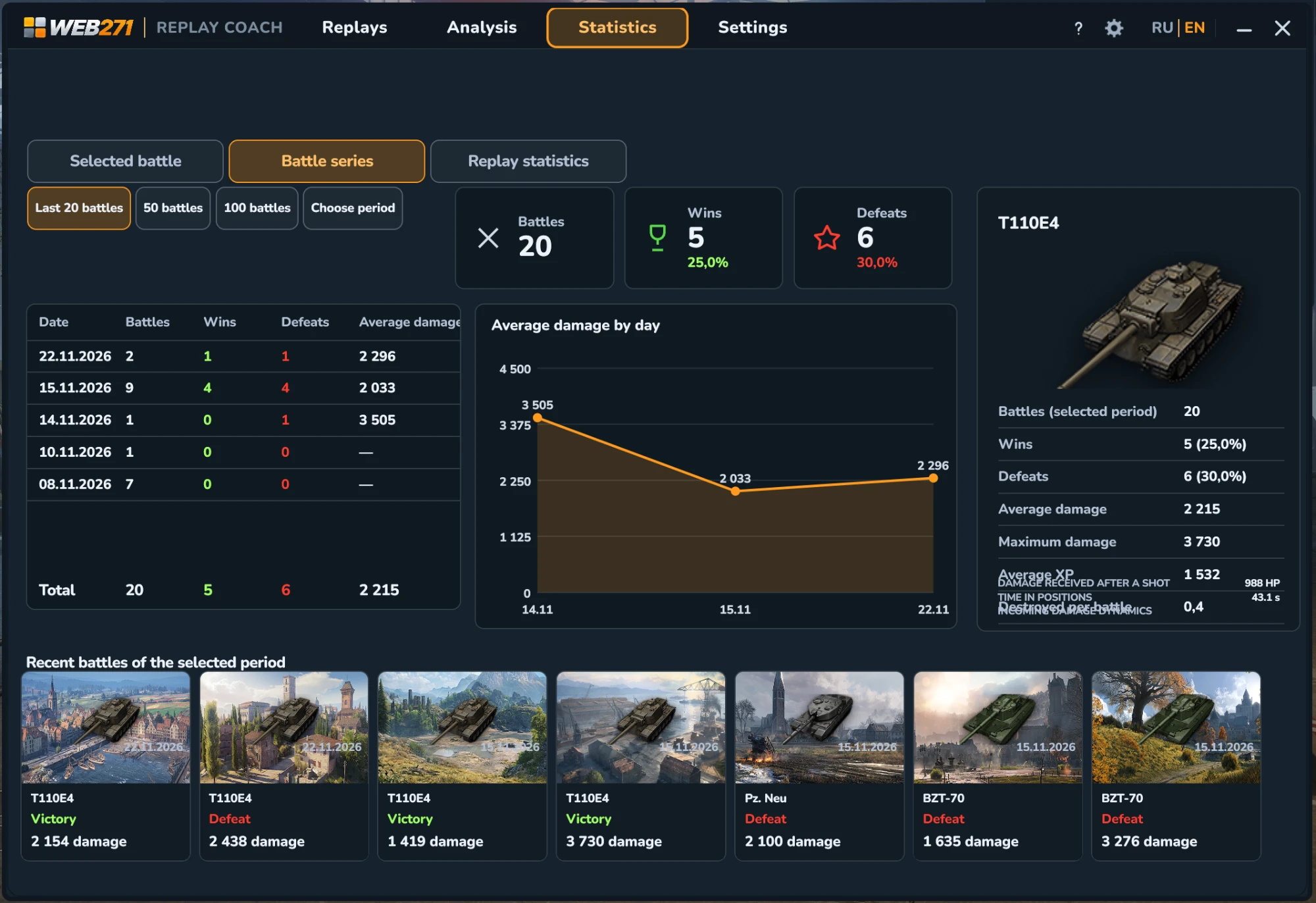
Battle series. How did the results change by day?
The last 20 battles in the archive. Five records are marked as wins and six as defeats. Over the records with known damage, the average damage was 2,215 and the maximum per battle 3,730.
How to compare days
Choose a period
You can take the last 20, 50 or 100 battles or set your own period. On the left you see how many battles fell on each day and how many have a known outcome.
Check the chart against the table
On 14 November the archive has one battle with 3,505 damage. 15 November has nine records, and the average damage over the known results is 2,033. 22 November has two battles and 2,296 on average. The record for 10 November has unknown damage, so the table shows a dash.
Find a specific record
The battles of the selected period are gathered at the bottom. By date, tank and map you can return to a record and review the battle that affected the average.
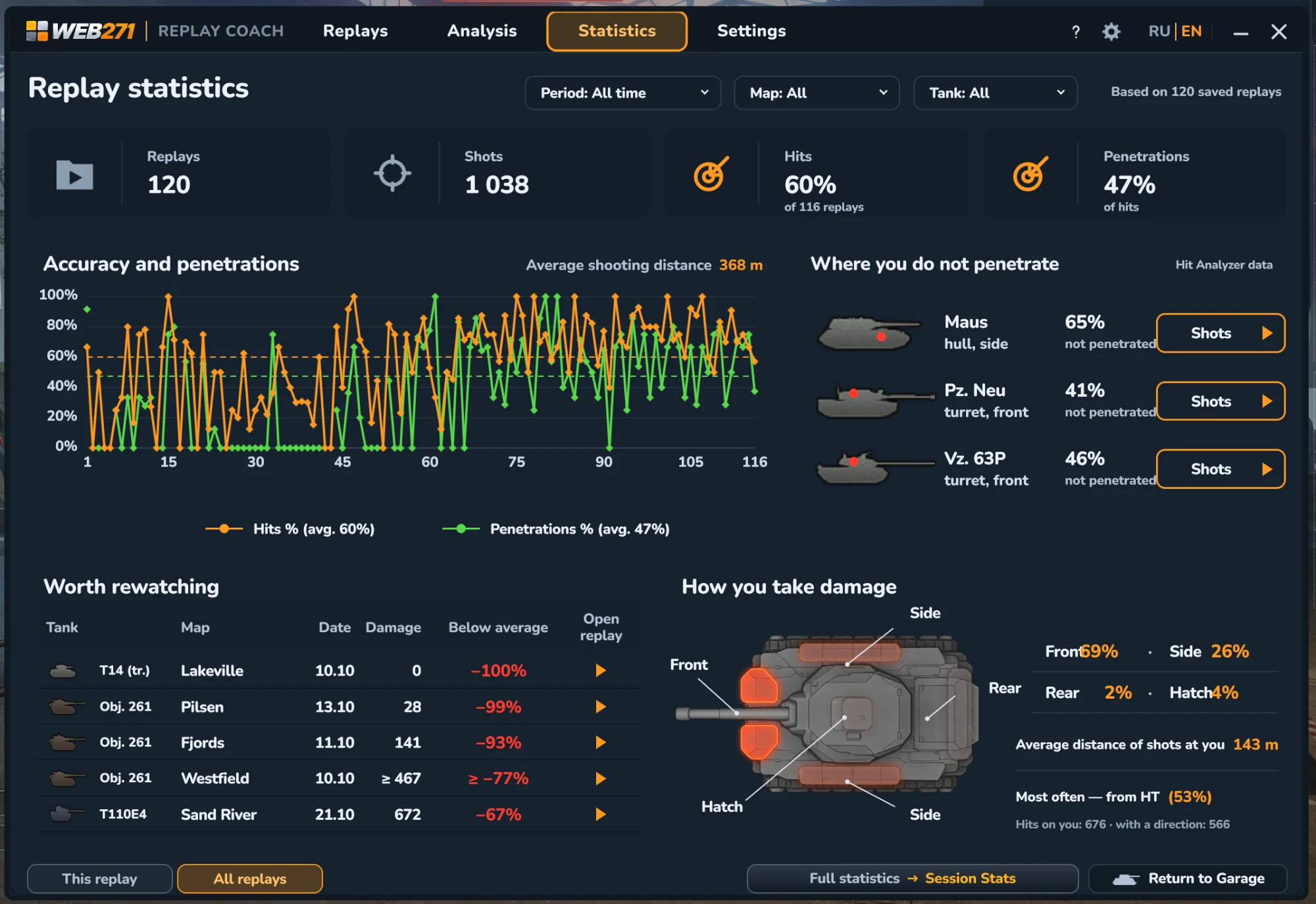
Replay statistics. What repeats in your battles?
The same battle library as in the “My replays” window. All time, all maps and all tanks are selected. The records contain 1,038 shots. Over the 116 replays with shots the mod calculated the accuracy: 60%.
How to go from figures to an episode
Accuracy and penetrations
The orange line shows how often you hit the target, the green one how often a shell that hit penetrates the armour. A point on the chart is a battle; the dashed line marks the averages. For this archive they are 60% and 47%. The average shooting distance is 368 m. At the top you can choose the tank, map or period.
“Where you do not penetrate”
On the Maus, 65% of hits did not penetrate. The summary marks the hull side. On the Pz. Neu the share of non-penetrations was 41%, on the Vz. 63P 46%; both have the turret front marked. The “Shots” button in the game opens the matching hit in “Analysis”.
“Worth rewatching”
The table has up to five battles with damage below the archive average. The T14 (tr.) on Lakeville has 0 damage. The arrow in that row starts exactly that replay.
“How you take damage”
676 hits on the player are recorded. Among the hits with a known direction, 69% landed on the front, 26% on the side, 2% on the rear and 4% from above, in the “Hatch” zone. The average distance to the shooters is 143 m. Heavy tanks hit the player most often: 53%.
The “Full statistics → Session Stats” button at the bottom opens the separate Session Stats mod, if it is installed.
How to watch a replay from an old game version
If you still have a recording of a good battle after a game update, you can open it through Replay Coach. For supported old recordings the mod itself picks a compatibility profile: a set of files with which the current client can play that battle.
A fragment of the “My replays” window from the example above. For the Dravec battle on Berlin the replay and client versions match: 2.4.1.1 #991. The green “Compatible” mark shows that you can click “Watch replay”.
How to start an old recording
Put the .wotreplay file in the client’s replays folder. In the Garage, open the WEB271 menu, choose “Replays” and find the battle you need.
Under the results, compare the replay and client versions. The example above shows the green “Compatible” mark. A recording from another version may show a yellow “Requires verification” mark. It means the profile was found, but playback for this pair of versions still needs to be tested.
Click “Watch replay” in the mod’s window. For a supported old recording, Replay Coach prepares the profile and restarts the game for viewing. When you are done, click “To garage”.
Compatibility depends on both versions. If the battle cannot be opened, the “This replay is not supported” window appears. It gives the reason and both versions, and the “Choose another replay” button returns you to the records.
How to link a loss of hit points to a place on the map
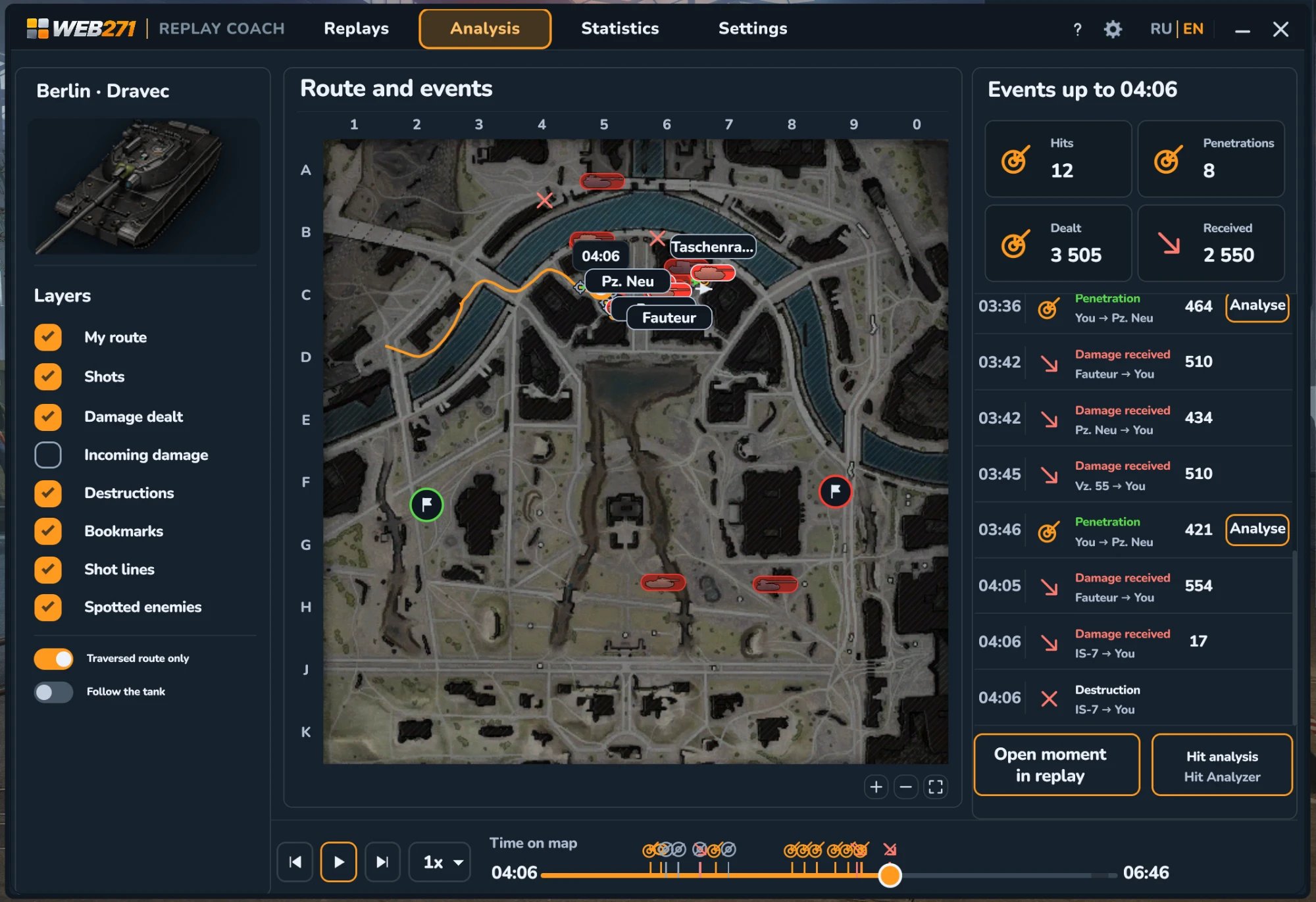
The same battle: Dravec on Berlin. One screen shows the tank’s path, the event list and the time. Every event is tied to a moment of the battle, so you do not have to rewatch the recording from the first second.
The map layers are chosen on the left. The route is in the centre. On the right are the events up to 04:06. By this moment there are 12 hits and 8 penetrations, 3,505 damage dealt and 2,550 received.
Reading the last seconds
03:36 · penetration
The Dravec dealt 464 damage to the Pz. Neu. The “Penetration” row shows the result of your own shot. The “Analyse” button shows the details of this hit.
03:42 · damage received
The Fauteur took off 510 hit points. In the same second the Pz. Neu took off another 434.
04:06 · destruction
The selected moment is when the IS-7 destroyed your tank. The “Open moment in replay” button returns to this second in 3D.
How to rewatch a few seconds in 3D
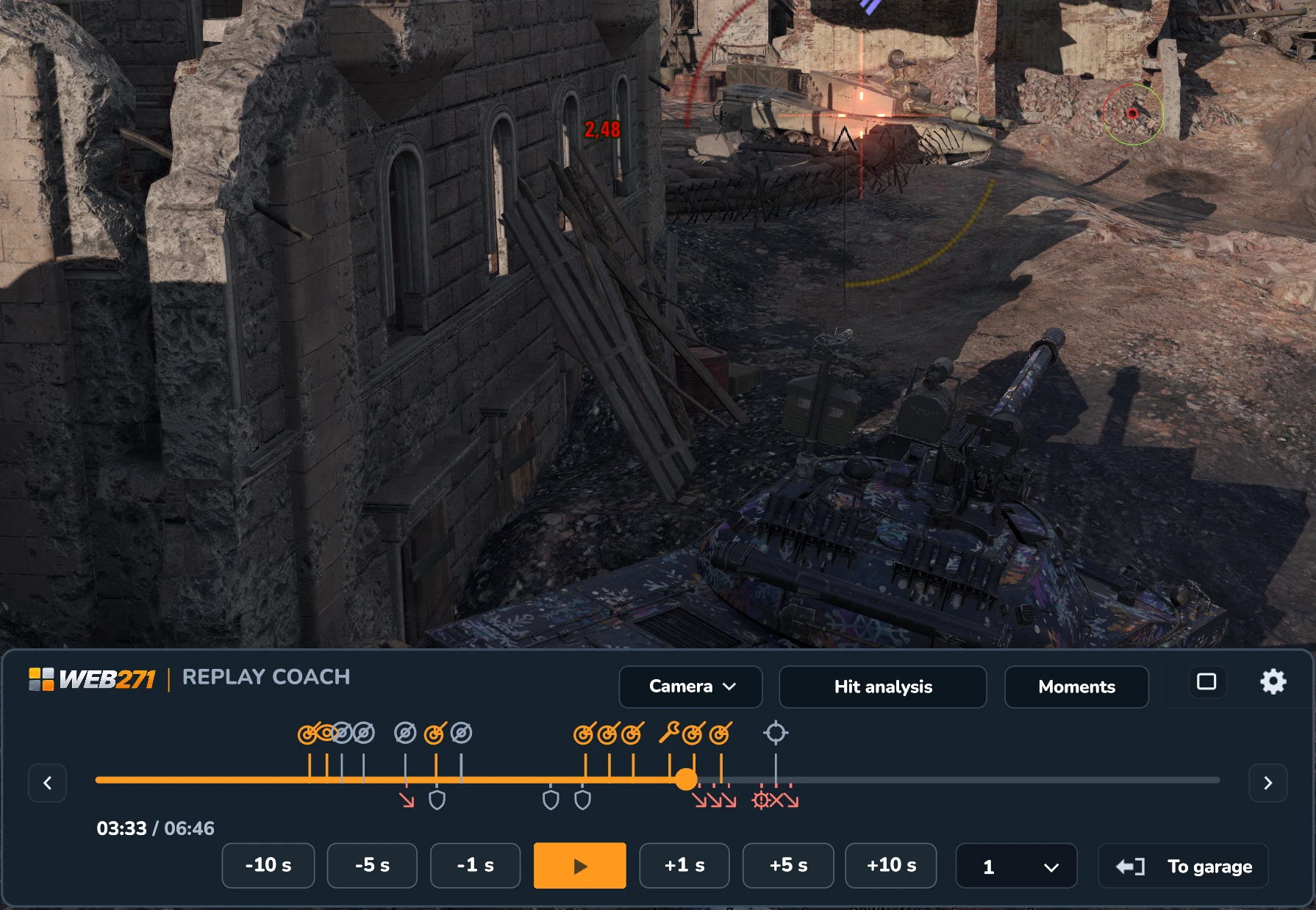
The replay plays inside World of Tanks. The crosshair, the teams and the minimap can stay on. The Replay Coach panel at the bottom lets you stop the scene at the right moment and see where the vehicles were before the shot.
A game frame during viewing. The tank’s position, the distance and the surroundings can be examined in the recording itself.
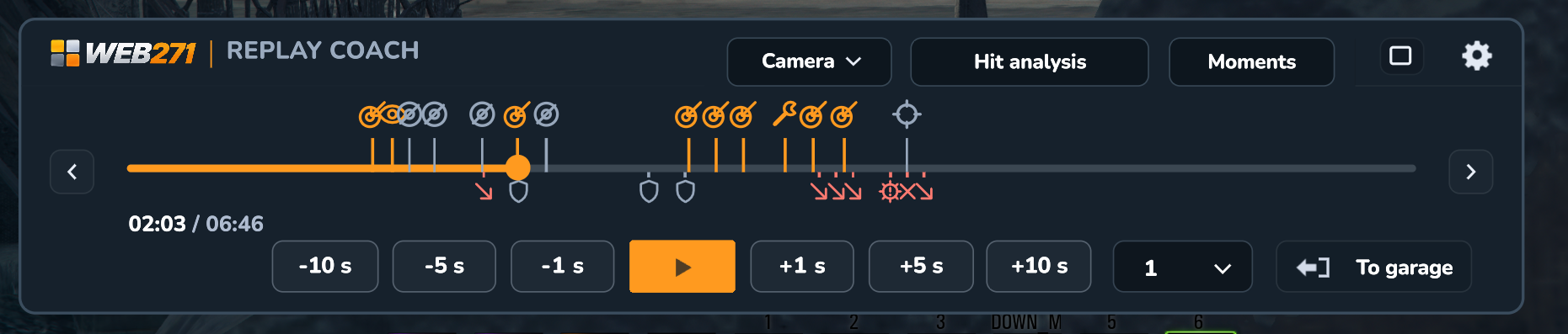
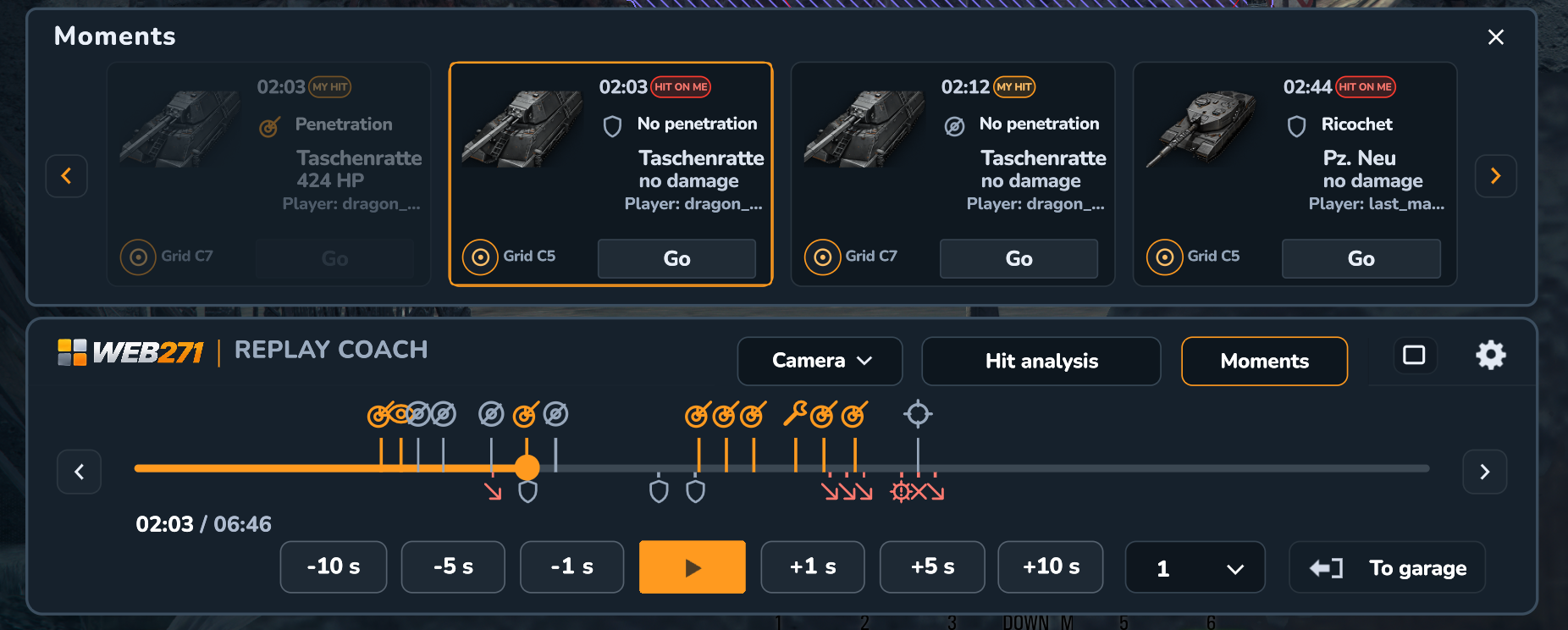
The player shows 02:03 of 06:46. The orange dot is the current time; the icons along the bar are events. The buttons under the bar jump 1, 5 or 10 seconds back and forward.
How to use rewind
Go back five seconds to see the situation before the hit. Use the “−1 s” and “+1 s” buttons to find the moment more precisely. To examine a short episode, pause the recording or lower the speed.
The player settings have a precise step of ±0.1 second. When rewinding, the game may need time to restore the scene.
In the “Camera” menu you can change the angle. When reviewing a hit, stop the recording and look at the shell’s entry point from the other side. The trajectory view shows the direction of flight.
How to jump straight to an event
The “Moments” window in the player helps you choose an episode while watching the recording.
How neighbouring cards differ
02:03 · “My hit”
Your shot penetrated the Taschenratte and took off 424 hit points. C7 is the map grid square. The “Go” button opens this episode.
02:12 · “My hit”
The same vehicle, the same square C7, a different result: no penetration and zero damage.
02:44 · “Hit on me”
Now the Pz. Neu fired. The “Hit on me” label shows that the shot is incoming. A ricochet; your tank kept its hit points.
An event answers the question “what happened”. The reason for your own decision can be judged from the scene itself: where the crosshair pointed, whether the vehicle was moving, how the view changed after you drove out.
Hit analysis right in the replay
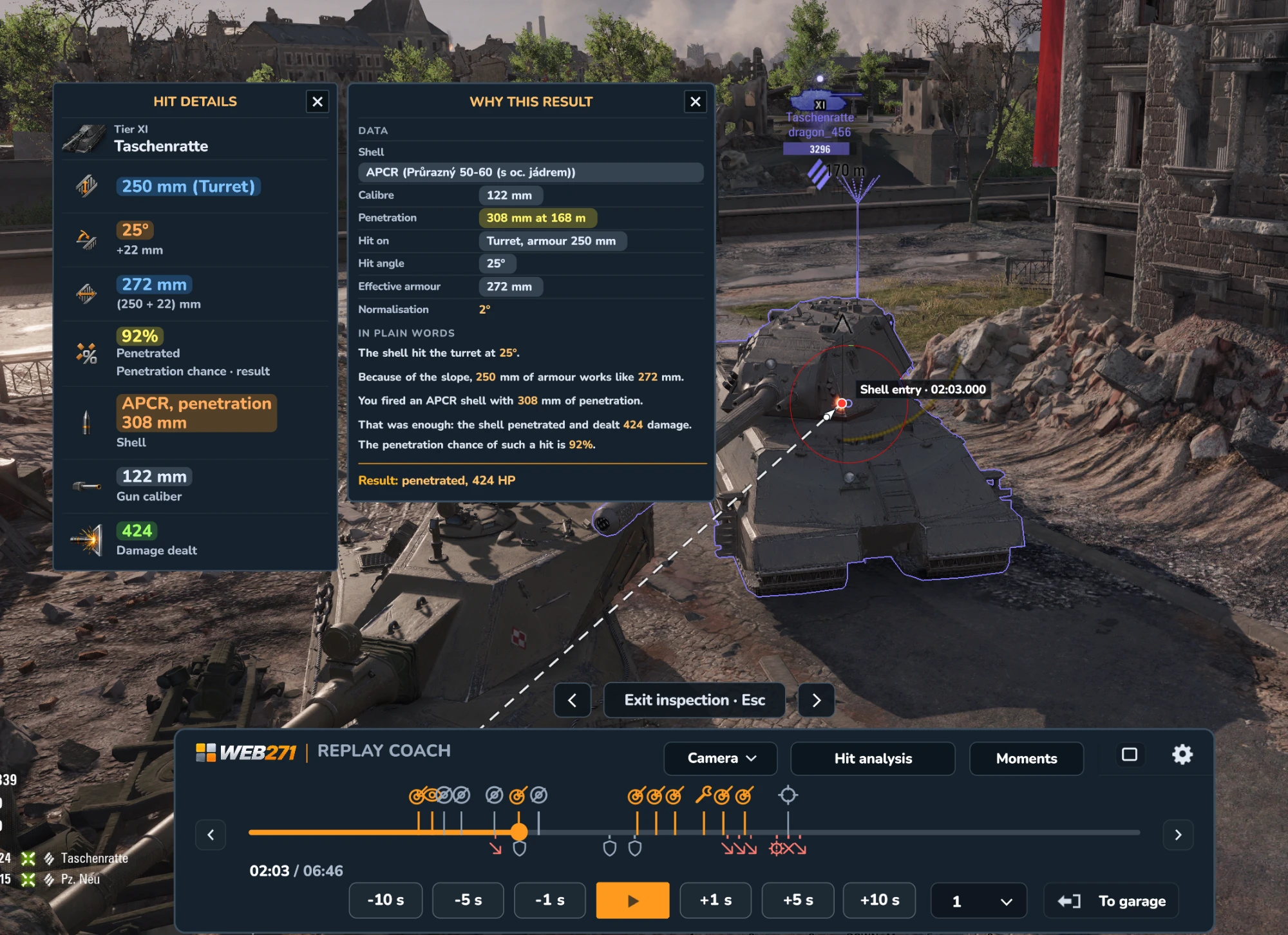
Stop the recording at the shot you need and open “Hit analysis”. Both panels appear over the same 3D scene. You see how the tanks stood, where the shot landed and why the damage went through. On the left, “Hit details” gives the angle, armour and damage. On the right, the “Why this result” panel explains the outcome of this shot.
Two hits on the Taschenratte
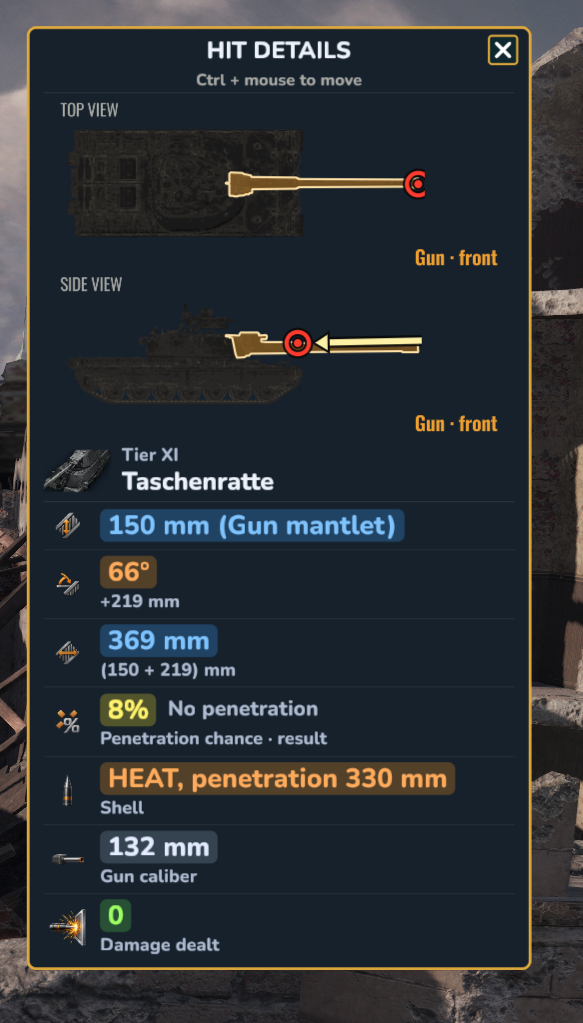
In the first episode the shell hit the turret with 250 mm of armour, in the second the gun mantlet with 150 mm. Compare the angle and the “Effective armour” row: it shows what thickness the armour amounted to along the shell’s path.
02:03 · penetration, 424 damage
The shell met the turret armour at 25°. Along the shell’s path the thickness was 272 mm. At 168 m the shell is listed with 308 mm of penetration. The mod estimates the chance at 92%. In this shot the penetration happened, and the Taschenratte lost 424 hit points.
No penetration, 0 damage
A hit on the gun mantlet at 66°. Effective armour is 369 mm; the shell has 330 mm of penetration. The mod estimates the chance at 8%. The result is “No penetration”; the tank kept its hit points. The two diagrams at the top show the hit point.
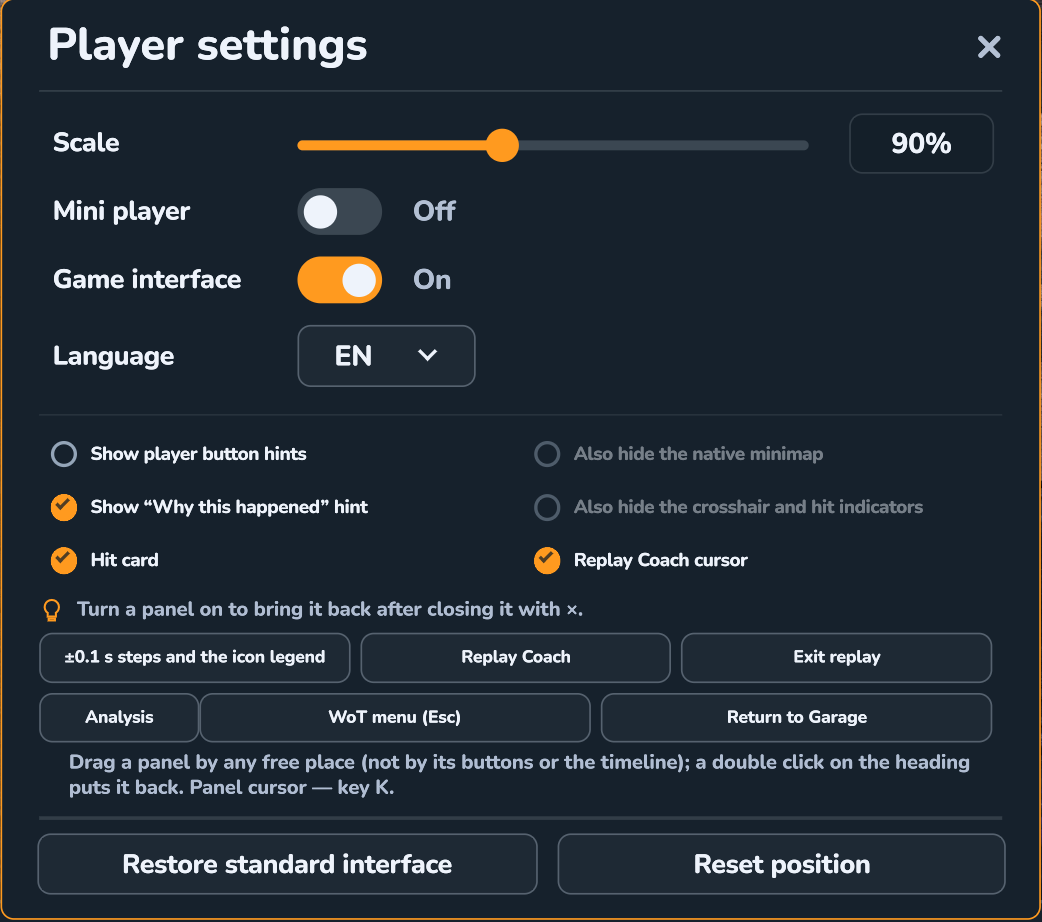
Here “Hit card” and “Show “Why this happened” hint” are on. With these settings, both panels from the Taschenratte example are visible when you review a shot.
What each setting changes
Scale
The size of the player. Reduce it if the player covers the tank. Increase it if the small text is hard to read.
Opacity
How see-through the player is. At 100% it is opaque.
Mini player
A compact player: progress, time and pause remain.
Game interface
Turn it off to hide the standard WoT interface. The Replay Coach panels and map stay.
Language
The player language: RU or EN.
Show player button hints
A table on the left during the replay: what each player button does.
Show “Why this happened” hint
A window next to “Hit details”: why the result came out this way.
Hit card
The “Hit details” panel with the angle, armour and damage.
Also hide the native minimap
When the game interface is hidden, the WoT minimap is hidden too.
Also hide the crosshair and hit indicators
When the game interface is hidden, the crosshair, the hit indicator and the vehicle markers are hidden as well. By default the crosshair stays.
Replay Coach cursor
A cursor for the Replay Coach panels without holding Ctrl. Also turned on with the K key.
If a panel was closed with the cross, turn it on here and it comes back.
The buttons at the bottom of the settings window
Replay Coach
Opens the Replay Coach window right in the replay.
Analysis
Opens the analysis of this battle in the Replay Coach window.
Exit replay
Closes the replay and opens the Replay Coach list.
WoT menu (Esc)
The standard game menu.
Return to Garage
Returns to the regular Garage. More in the block next to this one.
Restore standard interface
Shows the whole game interface at once: HUD, minimap, crosshair and hit indicators. The positions of the Replay Coach panels do not change.
Reset position
Returns all panels to their default places. Panels are dragged by any free spot; a double click on the heading puts a panel back.
“Return to Garage”
The button returns you to the Garage, to the place where you started this replay. Replay viewing ends, the WoT client restarts and opens the Garage. Replay Coach opens this battle at the same second.
If the game was started without Game Center, you need to log in to the account after the restart.
The next replay without leaving
The “Replay Coach” button opens the replay list right during viewing. Choose another battle in it and go to it. There is no need to close the replay and look for the recording again: open the list, switch and keep watching.
Download, installation and versions
Download Replay Coach
The link to the build is not published yet. The file and the client version it is meant for will appear here.
How to install and open
Close World of Tanks and choose the WoT ASIA client folder in the installer. After installation, open Replay Coach in the Garage, select a recording and click “Watch replay”. The mod reads .wotreplay files from the replays folder on your computer. Nothing needs to be uploaded anywhere to watch a recording. Before opening an old battle, check the compatibility mark next to the client version.
Free version
The “My replays” list, all filters and favourites. The player: pause, timeline, rewind and all speeds, the main camera, player settings. Event marks on the timeline are visible.
Paid version
Hit analysis in the replay and “Why this result”, the mod’s cameras, battle analysis on the map, the “Moments” window, the “Statistics” tab, replays from old game versions. One Mod — €4 a month, Pro — €9 a month. What the subscription gives