The panel in the Garage

Compact view: ping, FPS and frame time, each with a label under the value.
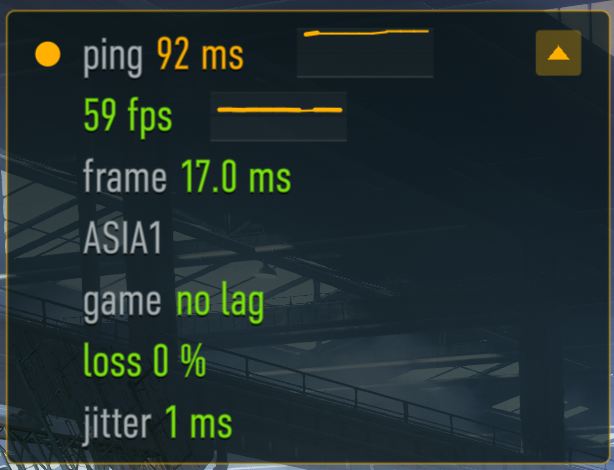
Ping, FPS, frame time, packet loss to the server and missed server packets in battle on one panel.
Compact view: ping, FPS and frame time, each with a label under the value.
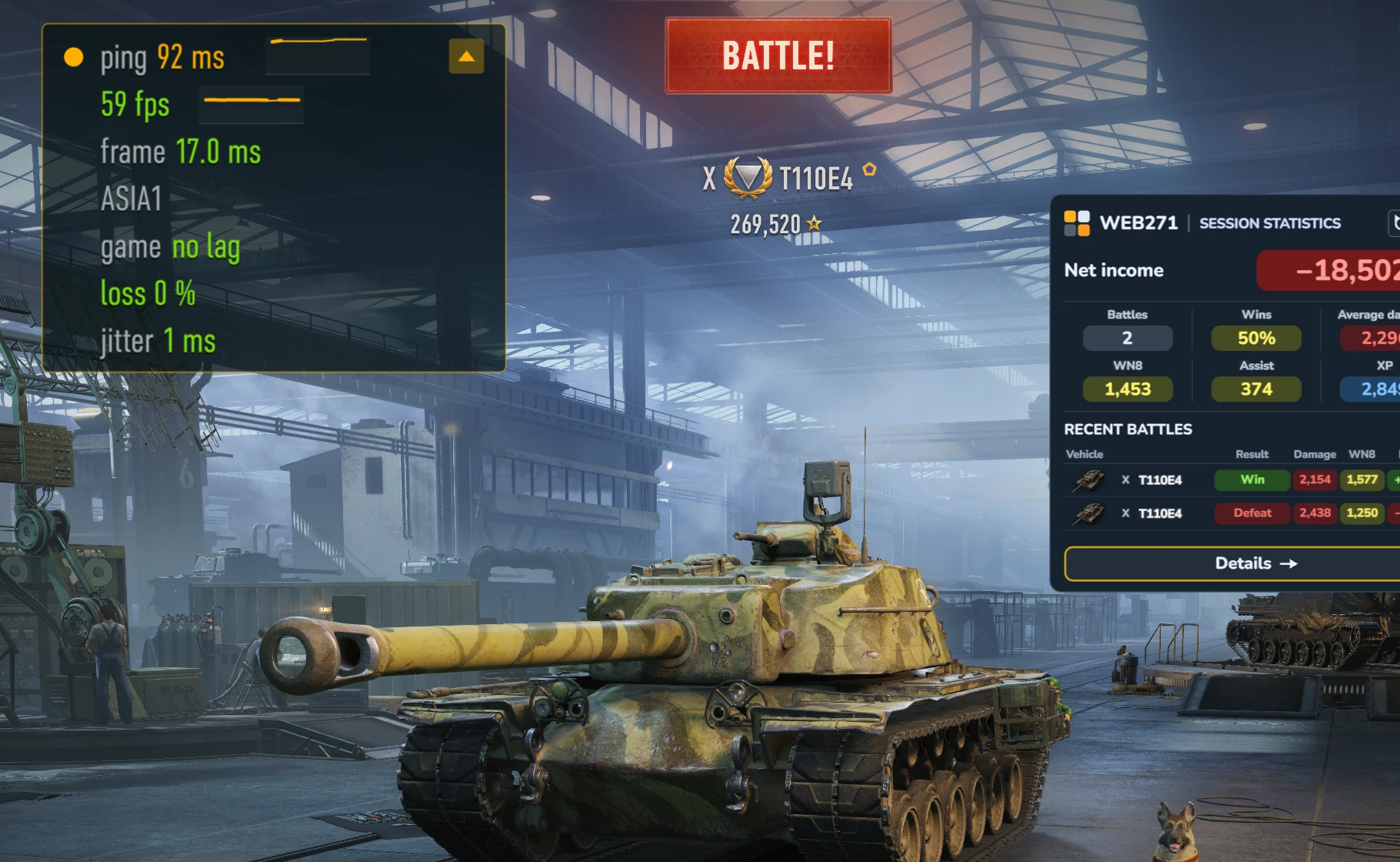
It does more than show ping, and it does not invent numbers the game does not have.
The mod sends ICMP requests to the address of your game server (the system ping.exe) and counts lost replies over the last 60 seconds. You see “loss 17%” where the client ping shows a steady 70 ms.
The server sends data 10 times a second. The mod counts how many times per minute it did not arrive in time and shows the percentage in the packets line. Pauses of the client itself and the time after your vehicle is destroyed are not counted, so no false loss is shown.
FPS hides stutters. The mod measures the length of every frame and shows frame time, the 95th percentile, the maximum and the number of frames longer than 50 ms.
Stable, unstable or bad, by the worst of: missed packets, ICMP loss, jitter, share of seconds with lag, average ping. The panel gets a coloured dot and the mod window explains the reason in words.
Its size does not change with the numbers; it hides under the Esc menu, dialogs and client windows and is dragged with Ctrl + mouse. Position and view are remembered separately for the Garage and battle.
Once a second the mod writes the values to a local file. A button prepares a text report you can show to your provider or to support.
The button on the panel switches between compact and expanded (in battle, with Ctrl held). Which expanded view is used is chosen in the settings.
| Metric | Where it comes from | Where it is shown | Colour thresholds |
|---|---|---|---|
| Ping | The client counter; in the Garage — the server list | Garage, battle, replay | 80 ms / 150 ms |
| FPS | The client counter | everywhere | |
| Frame time | The mod measures the length of every frame | everywhere | |
| Client lag | The client lag flag, share of seconds over 60 s | everywhere | 0% / 5% |
| Loss to the server (ICMP) | The system ping.exe to the current server address, batches of 20, a 60 s window, at least 10 replies needed | Garage and battle | 0% / 2% |
| Jitter | The average difference between neighbouring delay samples | extended and detailed view | 10 ms / 30 ms |
| Missed server packets | By the ping update rate (10 times a second); a miss is a pause between updates longer than 170 ms | battle only | 0% / 2% |
| Server | The server name (for example ASIA1) and its availability | Garage and battle |
mods\configs\web271\connection_monitor\history.ping.exe).ping.exe).Nowhere. The history is written to the local folder mods\configs\web271\connection_monitor\history. The only network request from the mod is a ping to the address of your game server. The mod author receives no data.
In the Garage the client talks to the server less often and the ICMP probe is more sensitive to the provider's route; in battle game traffic has priority. This is an observation, not a guarantee.
Over the last minute 5% of server updates arrived later than 170 ms or did not arrive.
Delete the .wotmod file from mods\2.4.1.1\; the mods\configs\web271\connection_monitor\ folder can be deleted if you do not need the settings and history.
The Connection Monitor download link will appear here. Version 0.1.0, file web271.connection_monitor_0.1.0.wotmod (515 KB).
1. Close the game. 2. Put web271.connection_monitor_0.1.0.wotmod into the World_of_Tanks_ASIA\mods\2.4.1.1\ folder. 3. Start the game. The panel appears in the Garage.
The mod is free in full: all panel views, all metrics, history and the report.
There is no paid version; this mod needs no subscription.